Add stops mid-route
New stops can join your route at any time, one at a time or as a pasted list.
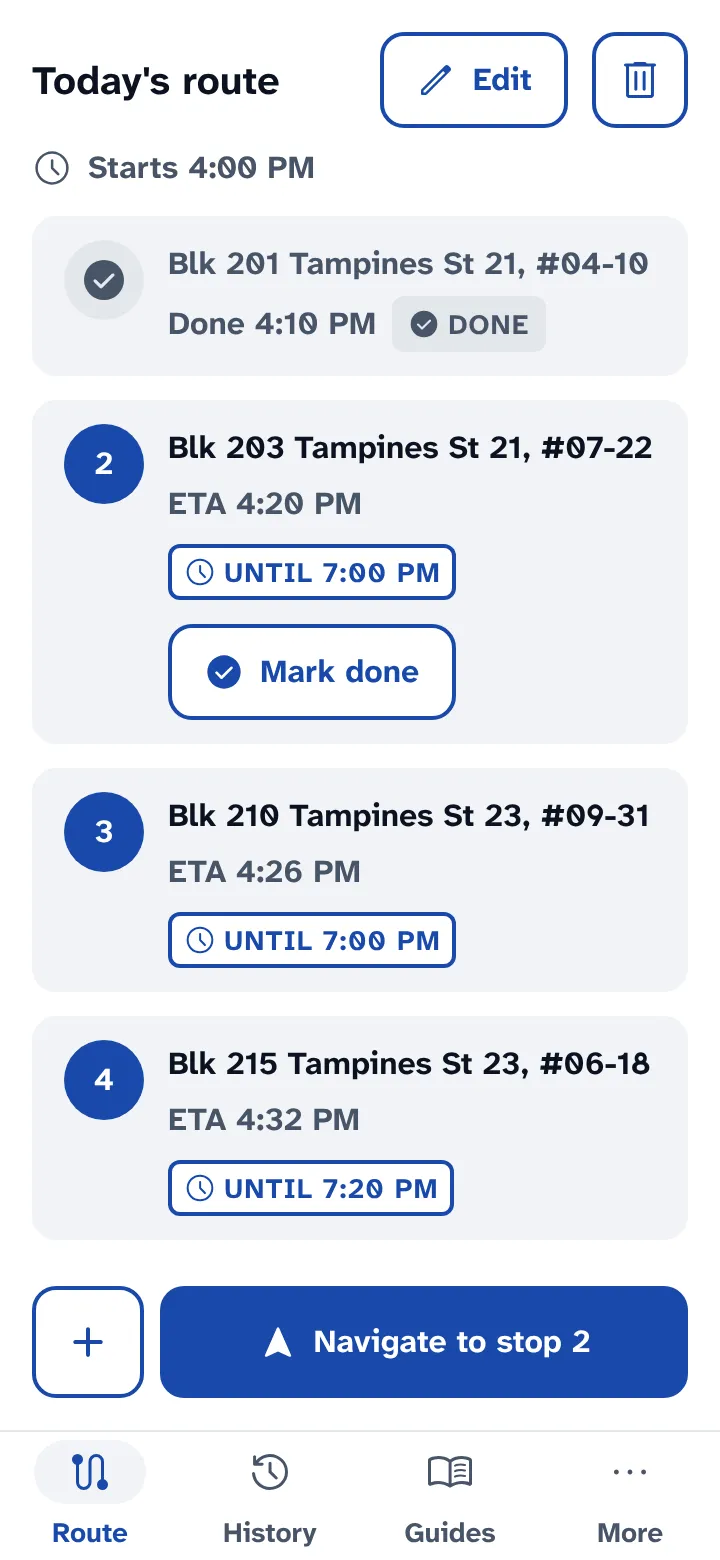
On the route, tap the plus button beside Navigate.
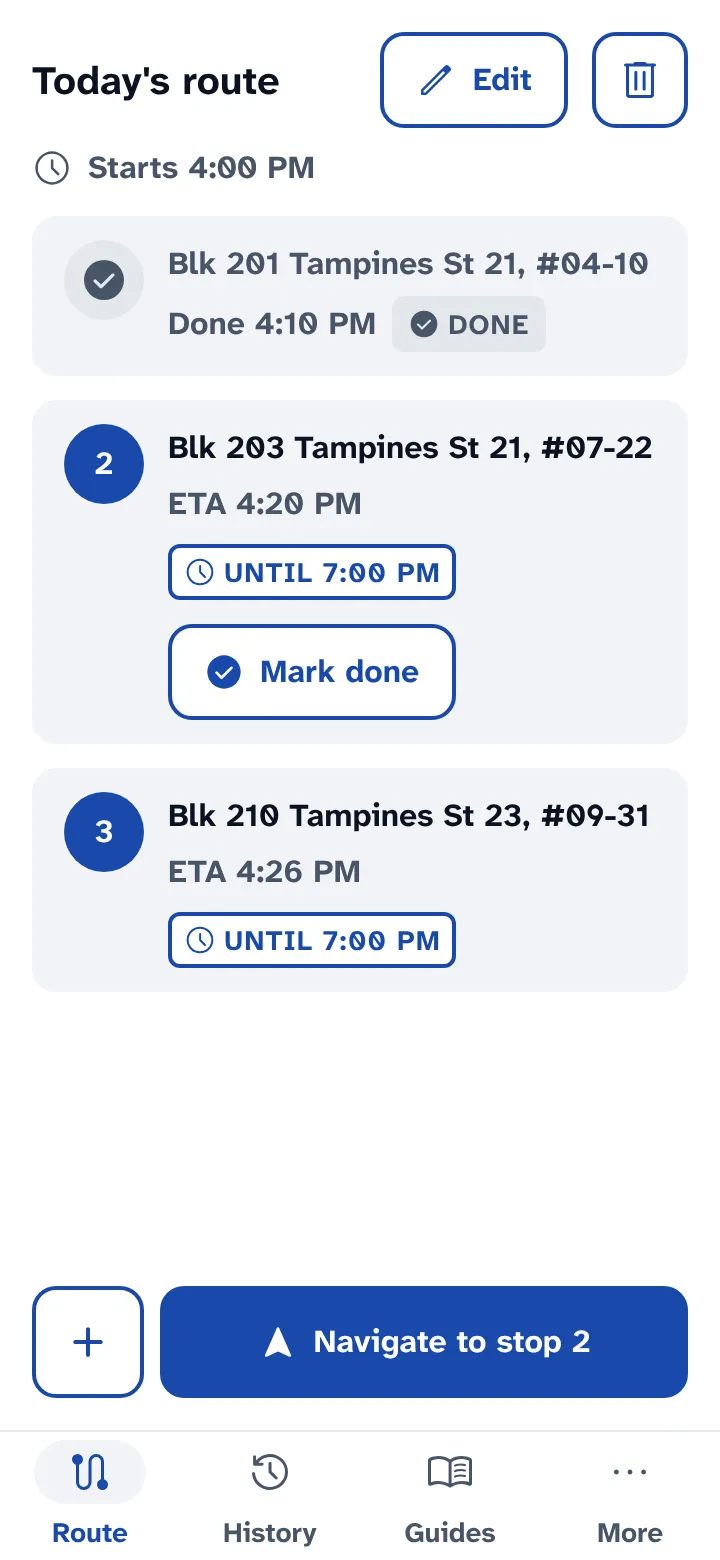
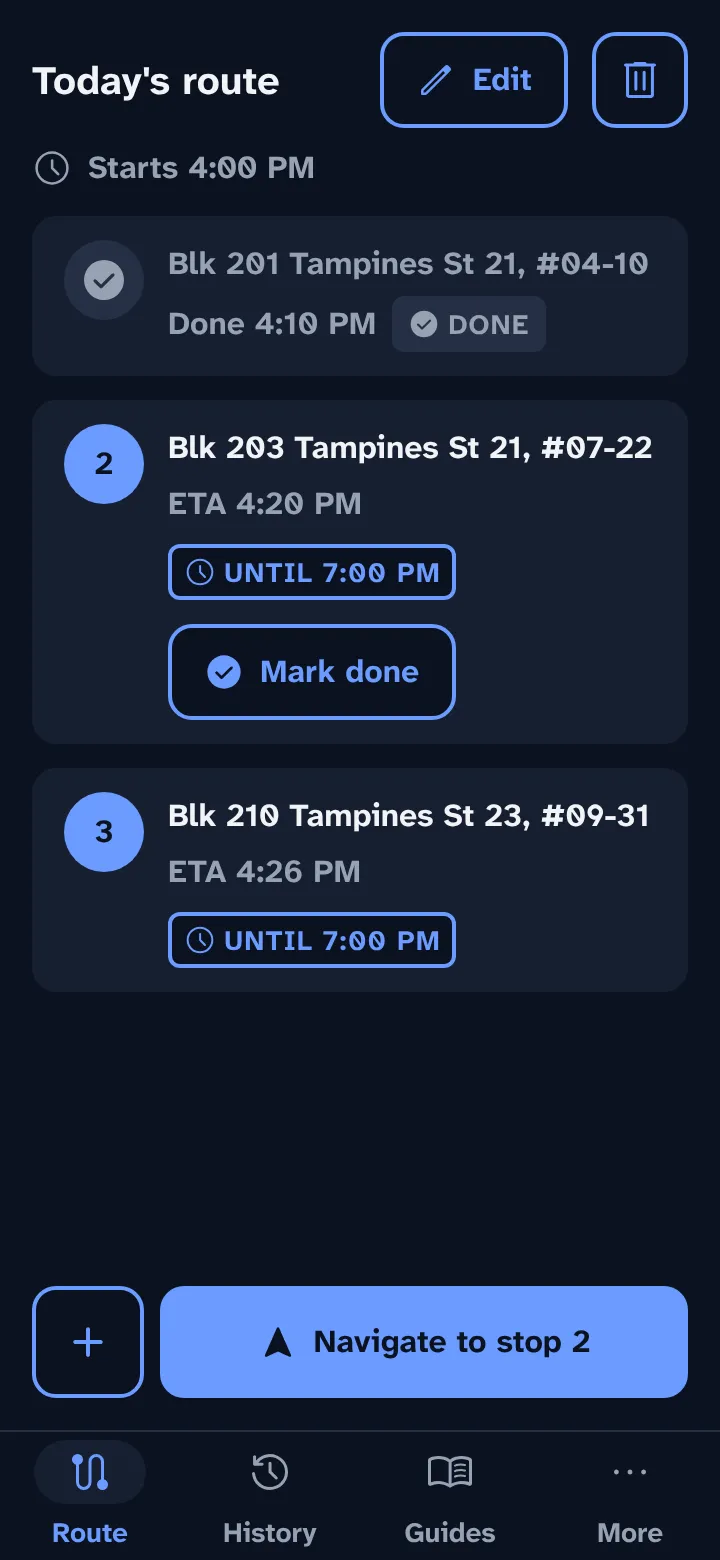
Enter the address and unit number, and pick 3 HR, 1 HR or Custom. Tap Add stop.
Check the list. Tap Add another stop for more. To paste a list, tap Paste a list instead on the Add stop screen.
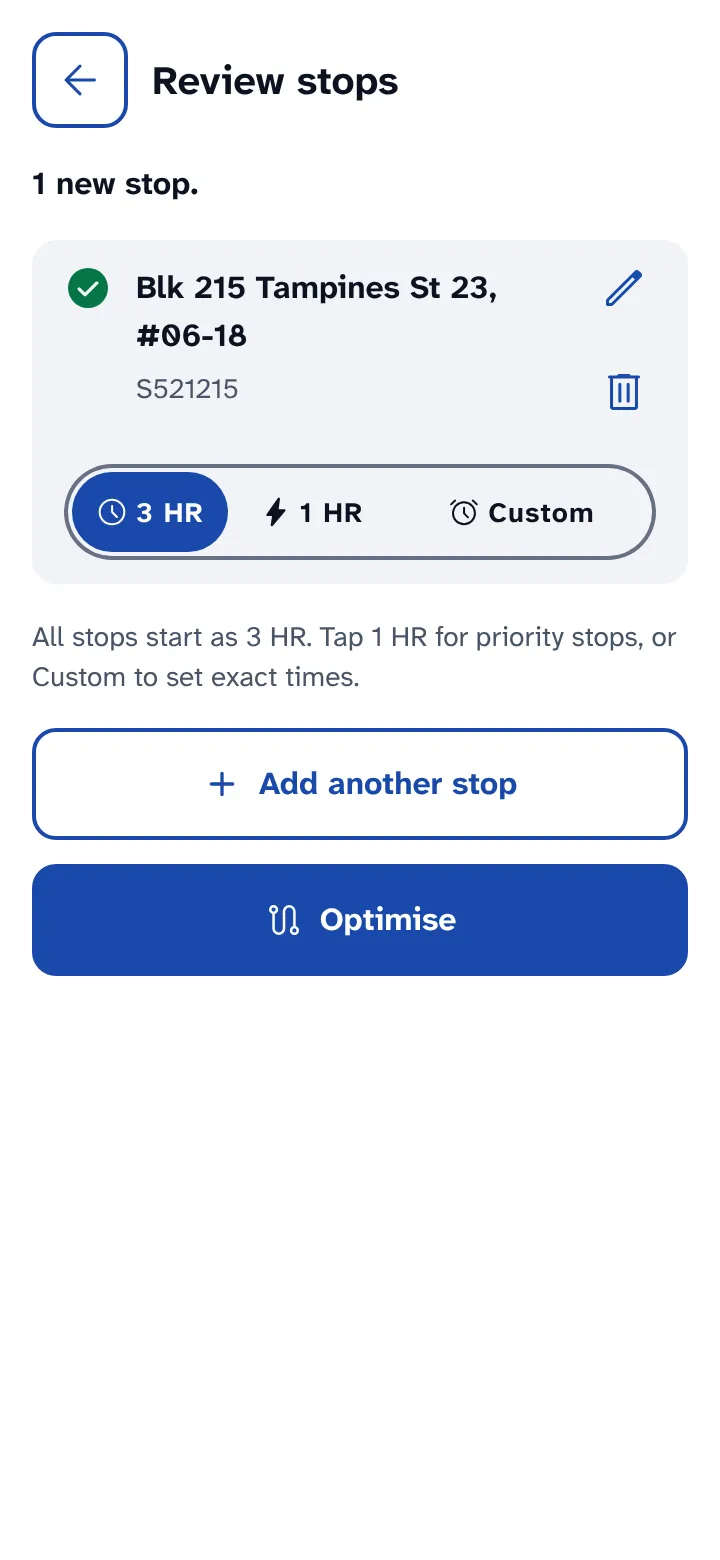
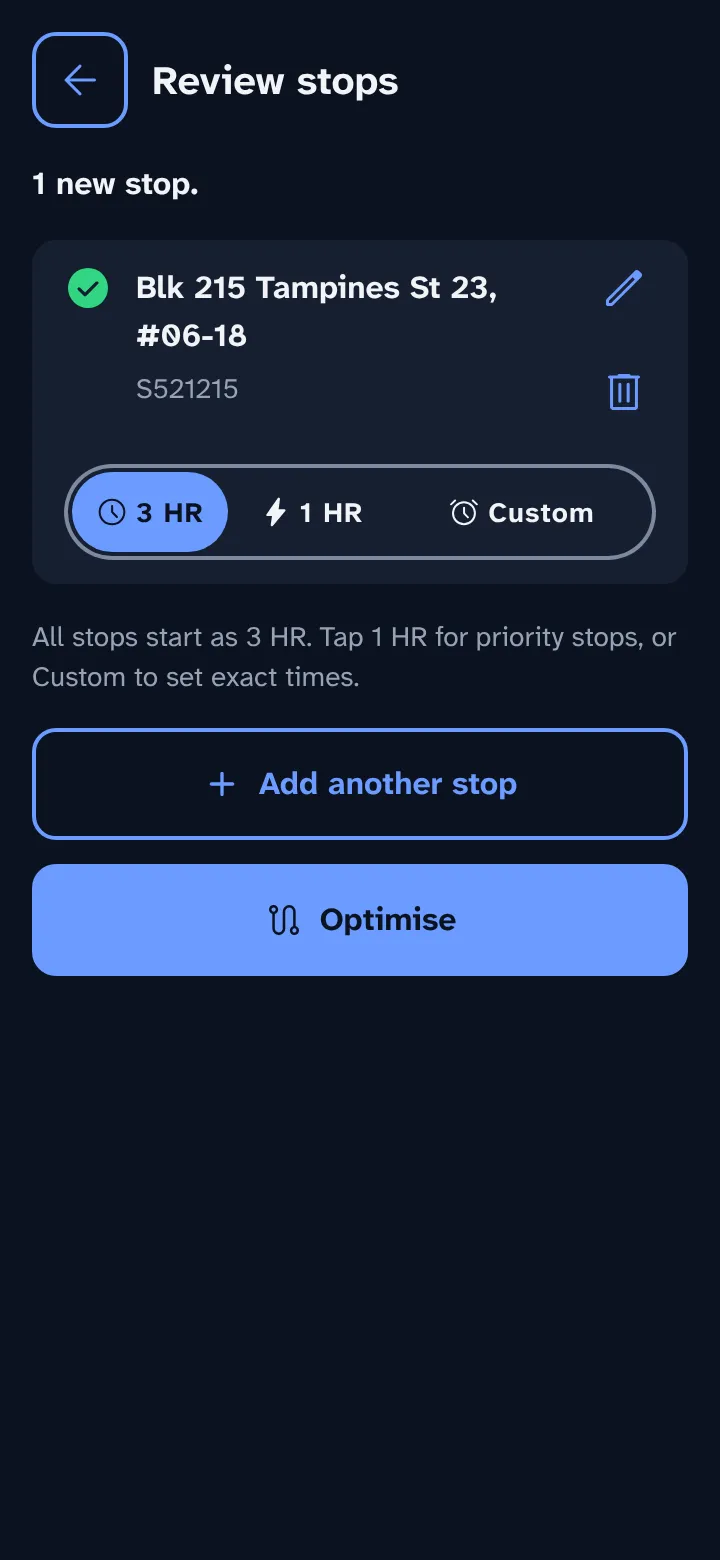
Tap Optimise. The app plans the new stops with the ones you have left, starting from the last stop you marked done.
When new stops are due
Once you've marked a stop done, a new stop's window starts when you add it. A 3 HR stop added at 4:20 PM is due by 7:20 PM. Before your first Mark done, new stops count from the route start like the rest.
Mark done as you go
The app doesn't track your location. It plans from the last stop you marked done, so tap Mark done at each stop to keep the plan right.